SolidWorks PDM
Beginner’s Guide to SolidWorks PDM Administration
A PDM administrator protects engineering data while keeping workflows simple enough for users to follow.
Core responsibilities
- Manage users, groups, and permissions.
- Maintain workflows, states, and transitions.
- Control revision schemes and file templates.
- Coordinate backups and disaster recovery.
- Support users and document standard procedures.
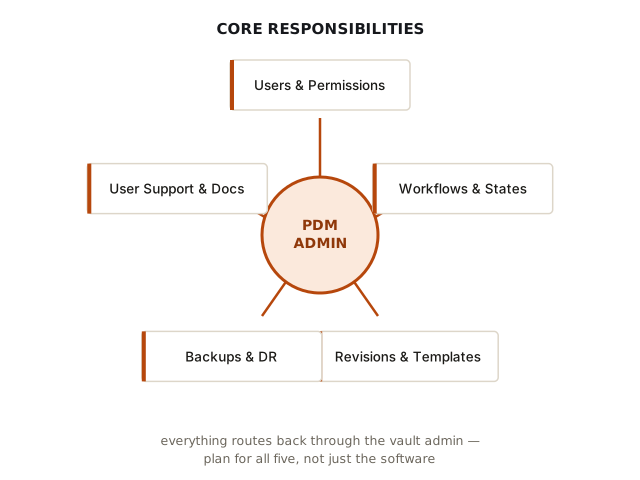
The PDM vault uses a SQL Server database to store metadata: file names, folder structure, users, groups, permissions, workflow states, variables, references, and records of which versions exist — not the files themselves. The Archive Server stores the physical file versions, the actual CAD documents. The vault view in Windows Explorer is a client that talks to both. Every one of the five responsibility areas above ultimately touches that pair, which is why admin problems tend to cascade: a permissions mistake affects who can reach files, a workflow mistake affects what state those files can move into, and a backup mistake can affect whether either the database or the archive is recoverable at all.
How the vault actually works
The distinction above matters in practice. SOLIDWORKS never edits a file sitting on the Archive Server — it edits a copy pulled into a local vault cache on the user's PC.
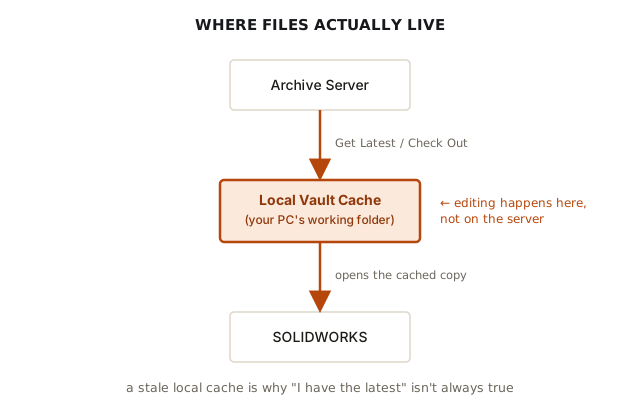
Check Out gives one user the controlled editing lock on a file in the vault. Other users can normally still view or open it read-only, but they can't check it out for modification until the first user checks it back in or releases the lock. Get Latest Version refreshes the local cache to match what's actually in the vault without taking the lock — a step people skip because they assume their cached copy is automatically current, which it isn't. Undo Check Out releases the lock and discards local changes without creating a new version, which is the right move when a check-out was accidental or the edits shouldn't be kept.
Versions vs. revisions
These two terms get used interchangeably by newcomers, and that's worth correcting early.
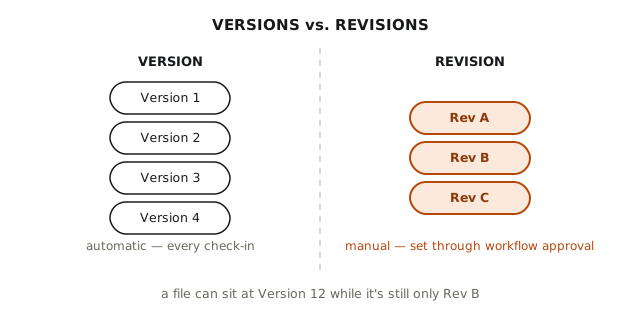
A version is created automatically every time a file is checked in — a raw change counter set by the server, with no approval attached. A revision is a formal milestone, usually set manually as a file moves through workflow approval, following a revision scheme the administrator configures (alphabetic, numeric, or a major/minor combination). Don't confuse the two: a part with dozens of versions might still be sitting at Rev A if it hasn't been through the approval workflow yet.
What to learn first
Start with vault structure, check-out and check-in behavior, versions and revisions, references, data cards, workflows, permissions, and backup verification.
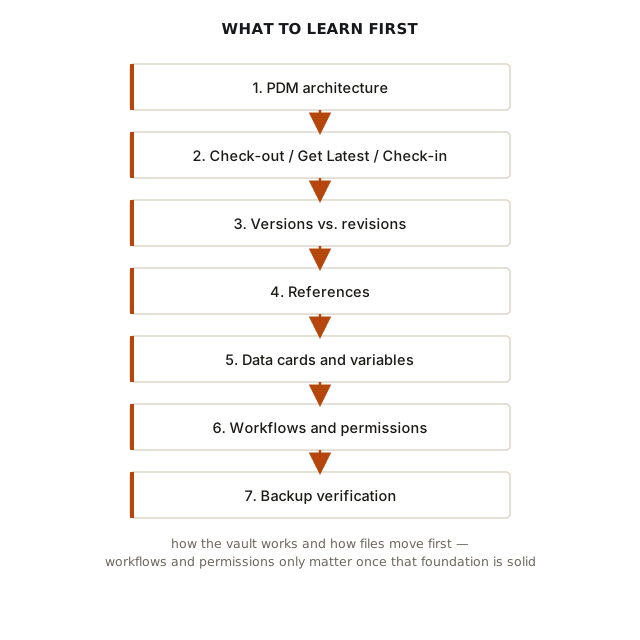
Learn vault structure and check-in/check-out behavior first because they form the foundation everything else sits on — folder structure, numbering conventions, variables, and workflows become increasingly painful to restructure once a vault has thousands of files in it. Data cards display PDM variables associated with files and folders; those variables can be mapped to SOLIDWORKS custom properties, so information like part number, description, material, and revision can flow between PDM and the CAD file. For example, a PDM variable such as Part Number can be mapped to a custom property, which can then be displayed automatically in a drawing title block — the mapping is what does the work, not the card by itself. References describe relationships between files, such as an assembly referencing its parts or a drawing referencing a model. PDM uses those relationships when displaying, retrieving, checking out, copying, and changing the state of related files, but a parent check-out or state change doesn't automatically cascade to every child — that behavior depends on reference dialog settings, transition rules, and what the user selects, all of which an administrator can control. Workflows and permissions come last for a reason: they only matter once the data underneath them is organized enough to have states and access levels worth defining.
Important rule
Test changes in a safe environment before applying them to the production vault.
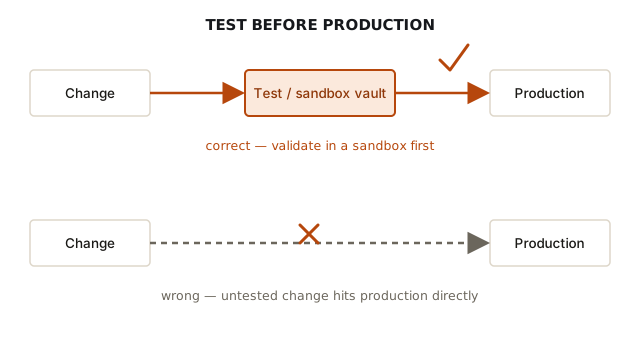
Backup is the piece most new admins underestimate. The database and archive should be backed up together so they represent a consistent state — restoring mismatched backups can result in missing file versions or inconsistent vault information, even without anything being technically corrupted. That same instant, global effect is why workflow, permission, and card changes get tested in a sandbox first: those changes apply to everyone with access the moment they're saved, and a bad one during business hours doesn't inconvenience a single user — it can lock out the floor.
Sources
This article draws on SOLIDWORKS PDM's own documentation and official SolidPractices guidance for the architecture, versioning, and reference-handling details above:
- SOLIDWORKS PDM Professional Architecture — SolidPractices (Dassault Systèmes)
- Cached Files — SOLIDWORKS PDM Help
- Undoing a Checkout — SOLIDWORKS PDM Help
- Defining Defaults for Retrieving References During Check Out / State Change — SOLIDWORKS PDM Help
- Link SOLIDWORKS File Custom Properties to Variables in PDM — GoEngineer
- What's the Difference Between SOLIDWORKS PDM Version & Revision? — Javelin
- PDM: Backing Up and Restoring the Server — Hawk Ridge Systems