Tools & Automation
How a PDF Splitter Tool Works: A Process Overview
Shop travelers, inspection reports, and drawing packages usually show up as one long PDF, when what you actually need is one file per part, page, or section. Here's the process behind a tool that does that split, laid out as flowcharts instead of code.
The end-to-end flow
At a high level, splitting a PDF comes down to five stages. A file comes in. It gets checked before anything happens to it. The tool works out where the split boundaries are. The individual output files get generated. And the result gets packaged up for delivery.
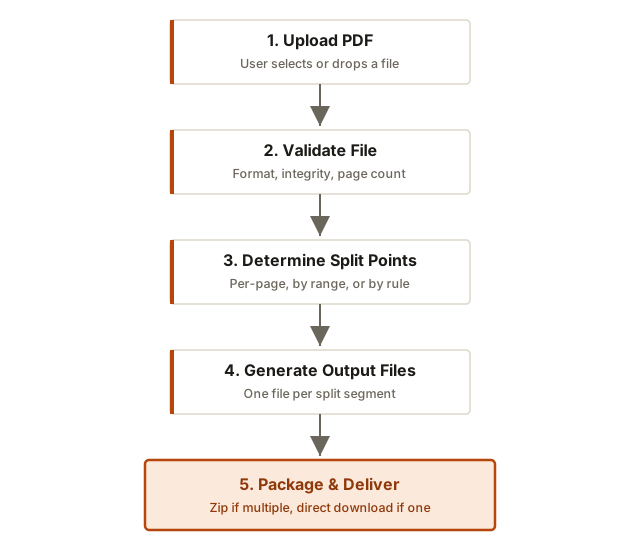
The middle step, determining split points, is where the actual behavior of the tool lives, and it's the one piece I'm deliberately not unpacking here. Whether that's a fixed rule like one file per page, a user-supplied range, or something that inspects the document itself is an implementation choice, not a process one. It doesn't change the shape of the flow around it. Generating the individual files once you know where to cut is the easy part, a few lines with any PDF library. Reliably knowing where one document ends and the next begins is the actual automation problem, and it's what most of the effort on a real splitter goes toward.
Validating before splitting anything
Every stage after validation assumes the file is structurally usable by the splitter, so the checks happen once, up front, and nothing downstream re-checks them. A bad file caught here fails fast and cheap. A bad file that slips through fails later, mid-process, after time has already been spent on it.
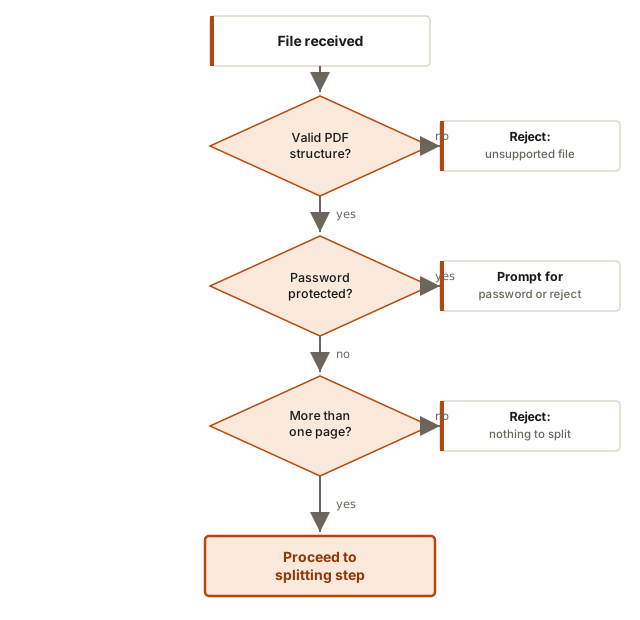
None of the three checks are arbitrary: is it really a PDF, is it locked, does it have more than one page. Each one rules out a specific way the next stage would otherwise fail badly. A file that doesn't actually parse as a PDF has no page structure to split on, and a .pdf extension alone doesn't prove that it will. An encrypted PDF may require a valid password before its pages can be processed; the tool can either prompt for that password or reject encrypted files outright if password handling is out of scope, which is exactly the branch the flowchart above shows. And if the splitter works at page level, a single-page PDF produces no meaningful split. Rejecting early on all three means the split stage only ever runs against a file it's actually equipped to handle.
Packaging the output
How the result gets handed back depends entirely on how many files came out of the split. One output file is just a download. More than one needs a decision about naming and bundling before anything reaches the user.
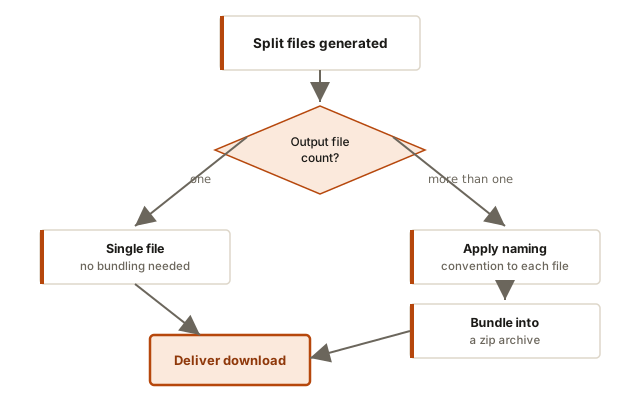
When a split produces multiple files, bundling them into a zip gives the user one download instead of a scattered pile they have to hunt down and reassemble by hand, and it keeps the whole output set together as one thing they can move, attach, or file away. It also sidesteps browser-specific behavior around triggering several automatic downloads at once, which some browsers throttle or block, but that's a secondary benefit rather than the main reason to zip.
Whatever naming convention sits behind the scenes, it has one job that matters more than style: producing filenames that are valid, unique within the batch, and safe to write to a filesystem. Two split segments that both resolve to the same identifier, say a repeated drawing number, can't both be saved as 12345.pdf without one quietly overwriting the other. A convention that appends a counter when it hits a collision, producing 12345.pdf and 12345_02.pdf instead of two files fighting over one name, is doing real work even though it never shows up in a diagram.
There's also a step the flow diagrams above don't show, because it happens after delivery rather than before it: cleanup. A server-based splitter is usually working out of a temporary location, the uploaded file, the generated pages, and the zip itself, and none of that should outlive the request that created it. Skipping this doesn't break any individual split, but it does mean temporary files quietly pile up on disk until something else notices.
The specific rule for detecting split points, and the exact naming convention applied to output files, are implementation details rather than process ones. They're left out of this article on purpose. The flow above holds regardless of which rule or naming scheme sits behind it.
A quick code walkthrough
None of this is the full script, just enough of each stage to show what it's actually doing under the hood. If you're using pypdf in Python, this is roughly the shape of it.
Step 1: Load the file and check it's usable
This is the validation stage from the flowchart above, expressed in code. It reads the file and bails out before anything else runs if the file can't be trusted.
from pypdf import PdfReader

try:
    reader = PdfReader(uploaded_file)
except Exception:
    raise ValidationError("Invalid or unreadable PDF")

if reader.is_encrypted:
    raise ValidationError("File is password protected")

if len(reader.pages) <= 1:
    raise ValidationError("Nothing to split")
This simplified example rejects every encrypted PDF outright. A production tool could instead prompt for a password and call reader.decrypt(password) before continuing, since pypdf can open an encrypted file once the right password is supplied. Which path you take is a product decision, not a technical limitation, and it's the same either-or the validation flowchart shows.
Step 2: Generate the output files
This is the simplest possible version of the split step, one file per page. A real tool layers a rule or a user-supplied range on top of this, but the underlying move, take a page and write it to a new file, stays the same regardless.
from pypdf import PdfWriter

for index, page in enumerate(reader.pages):
    writer = PdfWriter()
    writer.add_page(page)
    with open(f"page_{index + 1}.pdf", "wb") as out:
        writer.write(out)
Step 3: Bundle the results
Once the output files exist, they get zipped together rather than handed back one at a time, for the browser-download reasons covered earlier.
import zipfile

with zipfile.ZipFile(
    "split_output.zip",
    "w",
    compression=zipfile.ZIP_DEFLATED,
) as archive:
    for path in output_paths:
archive.write(path)Handling errors as first-class paths, not afterthoughts
A splitter that only handles the happy path falls over the first time it meets a real-world file. Four failure points come up often enough that each one gets routed to its own clear, user-facing message instead of a generic failure or a silent skip.
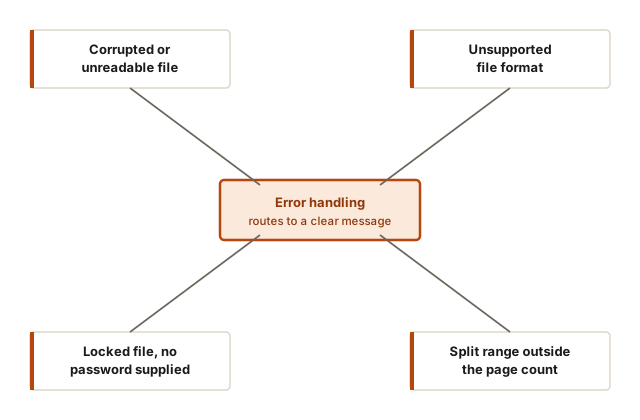
The common thread across all four is that none of them gets treated as an edge case to shrug off. A corrupted file, a mismatched extension, a locked document, and an out-of-range request all get identified specifically enough that whoever hits them knows what actually went wrong, instead of being left with a tool that just didn't produce anything.
Where this fits into a broader workflow
On a shop floor, this kind of tool usually sits between a document source and a filing destination, not as a standalone app someone opens on its own.
| Source document | Typical split | Destination |
|---|---|---|
| Multi-part shop traveler | One file per part number | Job folder or PDM vault |
| Batch inspection report | One file per part serial | Quality records |
| Combined drawing package | One file per drawing | Engineering release |
Framed this way, the splitter isn't really the end of the workflow. It's a step that turns one document that's hard to route into several that aren't, so whatever comes after it (filing, revision control, distribution) can treat each output file the same way it would treat any other single-purpose document.